

DMA Card 100T Guide
Manual how to set up DMA card with 100T chip and solve possible errors.
How to get DNA ID — https://www.dma-cheats.com/dna-id-guide
You can buy our DMA card here — https://www.dma-cheats.com/dma-cards
INSTALLATION
TROUBLESHOOTING

DOWNLOAD
Recommended Hardware
Recommended USB cable — Purchase USB Cable
Not enough space for your DMA card? You can buy extender — Purchase PCIe Extender
If you don't have a Second PC we recommend — Mini PC
Recommended OS — Windows 10 or 11
Before installing the DMA card
Download and keep the DMA Cheats folder on your Second PC.
For the safety of your gaming accounts, follow these DMA card usage guidelines:
1. Before installing the DMA card into your motherboard, uninstall the VGK and Faceit anti-cheats from your Main PC if they are installed.
You can uninstall VGK through the Installed Apps settings:

To uninstall Faceit AC, go to C:\Program Files\FACEIT AC and run unins000.exe.
2. Don't launch any anti-cheats and don't play any games while using the default firmware.
You will get banned if you install DMA card with default firmware into your Main PC and run any anti-cheat or game, even if you didn't run a DMA cheat.
3. After receiving and installing your custom firmware, play only the games that supported by it.
Example:
-
You received DMA card.
-
You uninstalled VGK and Faceit anti-cheats.
-
You inserted DMA card into your motherboard, obtained DNA ID and sent it to the Manager.
-
After you bought a firmware, you are waiting 1–2 days for it, and during this period, you are not playing any games.
-
You received and installed your firmware (for example for firmware BE).
-
You can now play games that are supported by your firmware. If your firmware doesn't support EAC, VGK etc., you shouldn't play these games even without DMA cheats running.
-
If you want to play unsupported games without DMA cheats running, turn OFF the DMA card using the switch (every time you power the DMA card ON or OFF, your Main PC must be completely shut down. Otherwise, you may damage the DMA card).
DMA Card Installation
1. Make sure that the switch on your DMA card is set to the ON position.
Every time you power the DMA card ON or OFF, your Main PC must be completely shut down. Otherwise, you may damage the DMA card.

2. Turn off the power of your Main PC. Open the computer case and install the DMA Card in PCI express slot (x1, x4 or x16) of your motherboard.
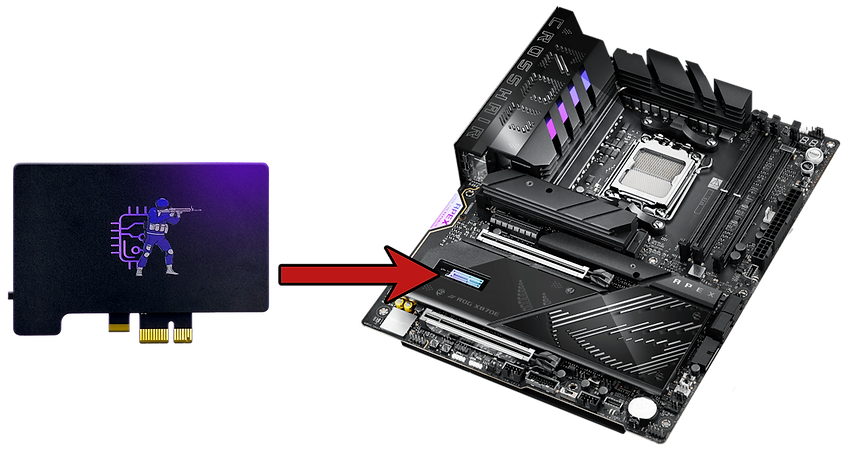
3. Insert USB 3 cable into the DATA port on your DMA card.

4. Insert the other side into a USB 3.0/3.1/3.2 port on your Second PC.
5. Turn on your Main and Second PCs.
6. On your Second PC go to the folder DMA Cheats\1. DMA Card\100T\1. Driver and run FTD3XXDriver.exe.

7. The driver will be installed and you will see this window.

9. On your Second PC go to the folder DMA Cheats\1. DMA Card\100T\3. DMA test.
And run lone-dma-test.exe.
Select 1. Full Test.

< 60 MB/s — bad speed, you need to get a better USB Cable or try another USB 3 Port or another PCIe slot
>= 100 MB/s — good speed
>= 150 MB/s — great speed
If your DMA card doesn't have firmware yet, then you should buy it and install it according our manual
Video Manual
Second PC doesn't detect DMA card
-
Make sure that DMA card is powered ON if it has physical switch.
-
Try to use a different PCI express for DMA card if you have any free slots.
-
Disconnect other PCI express devices from your Main PC if you have any (except graphic card).
-
Turn off VT-d on Intel or IOMMU on AMD CPU in BIOS.
-
Change USB 3.0 cable and use different USB 3.0 port on your Second PC.
-
Go to BIOS → Advanced / PCIe Configuration and change to PCI version to Gen1 or Gen2.
-
Try to reinstall Windows on your Second PC or get another Second PC.
DMA Speed test failed
If DMA card is displayed in the Device Manager, but speed test isn't working, this video will help you:
Low DMA speed test result
-
Try to use a different PCI express for DMA card if you have any free slots.
-
Change USB 3.0 cable and use different USB 3.0 port on your Second PC.
-
Make sure your Second PC is enough powerful (CPU not older than 7 years and 12GB+ RAM).
-
If the steps above didn't help, then it may be due to the Firmware. Ask the developer to replace it.
After installing Firmware
-
If after installing new firmware, DMA speed test doesn't work, try to do cold boot of your Main PC:
-
Turn off your Main PC and turn off the power (turn off the power supply or unplug the power cord from the wall outlet).
-
Wait for 30 seconds.
-
Connect the USB cable to the DATA port on DMA card, turn on the power and your Main PC.
-
Run DMA speed test on your Second PC.
Where to download?
You can download DMA Cheats folder here — https://www.dma-cheats.com/download
